Users and security
Inviting users
Give colleagues access to your organisation: invite them, resend an invitation, change or remove access.
If several people work on your websites, give each of them their own account. That way you know who may do what, and nobody has to share a password. Inviting and managing users is done by an owner, under Customer admin → Users.
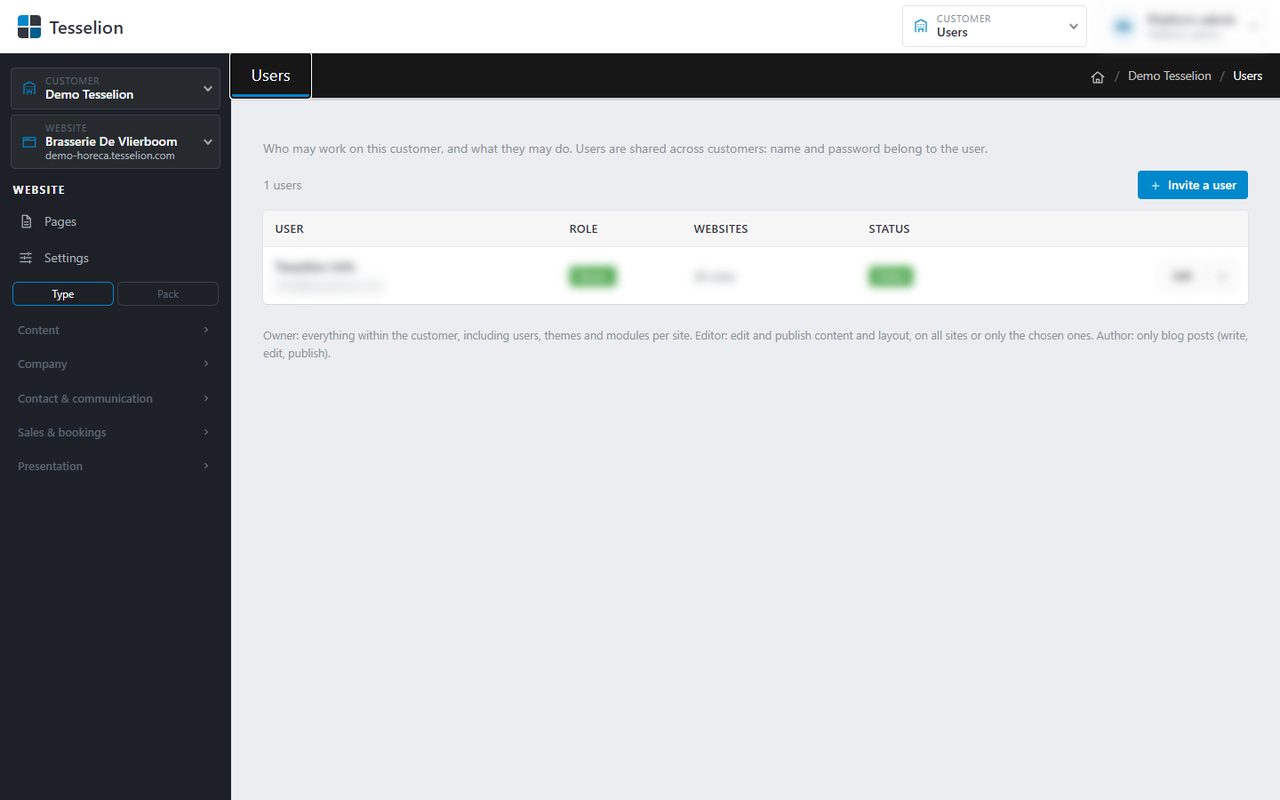
Inviting someone
- At the top right, click Customer admin and then Users.
- Click Invite a user.
- Enter the Email address, the Name and the Language used for the admin and the email.
- Choose a Role: Author, Editor or Owner.
- For an editor or author: leave All sites (also future ones) ticked, or untick it and pick the websites this person may work on under Only these sites.
- Click Invite.
A new user receives an email with a link to choose a password, valid for 7 days. They are listed as Invited until they have chosen a password, then as Active.
A platform administrator can also tick Set a password myself (no invitation e-mail) when inviting: the user is then active straight away, with a confirmed e-mail address. For an existing user, Edit shows the Set password section (also for the platform administrator only), for example for someone who does not receive the e-mail. Pass the password on securely.
Tip: Does the person already have a Tesselion account, for example with another organisation? Then they get access straight away, along with an email to let them know. Their name and language stay as they set them.
Resending an invitation
If the email did not arrive or the link has expired, click Resend invitation in the user's row. A new email goes out with a new link.
Changing access
- In the user's row, click Edit.
- Change the role or the websites.
- Click Save.
Removing access
Click the cross in the user's row, or Remove access in the edit form, and confirm. The account itself remains, but no longer has access to your organisation.
Note: You cannot change or remove your own access; ask another owner. An organisation also always keeps at least one owner, so make someone else owner before giving the last owner a different role.
See also
Last updated on 20 November 2026