Pages
Redirects
Send old addresses to a new page, for example after moving from an old website.
A redirect sends visitors and search engines from an old address to a new page. This is especially useful when you move from an old website: links in Google, in emails or on other sites keep working.
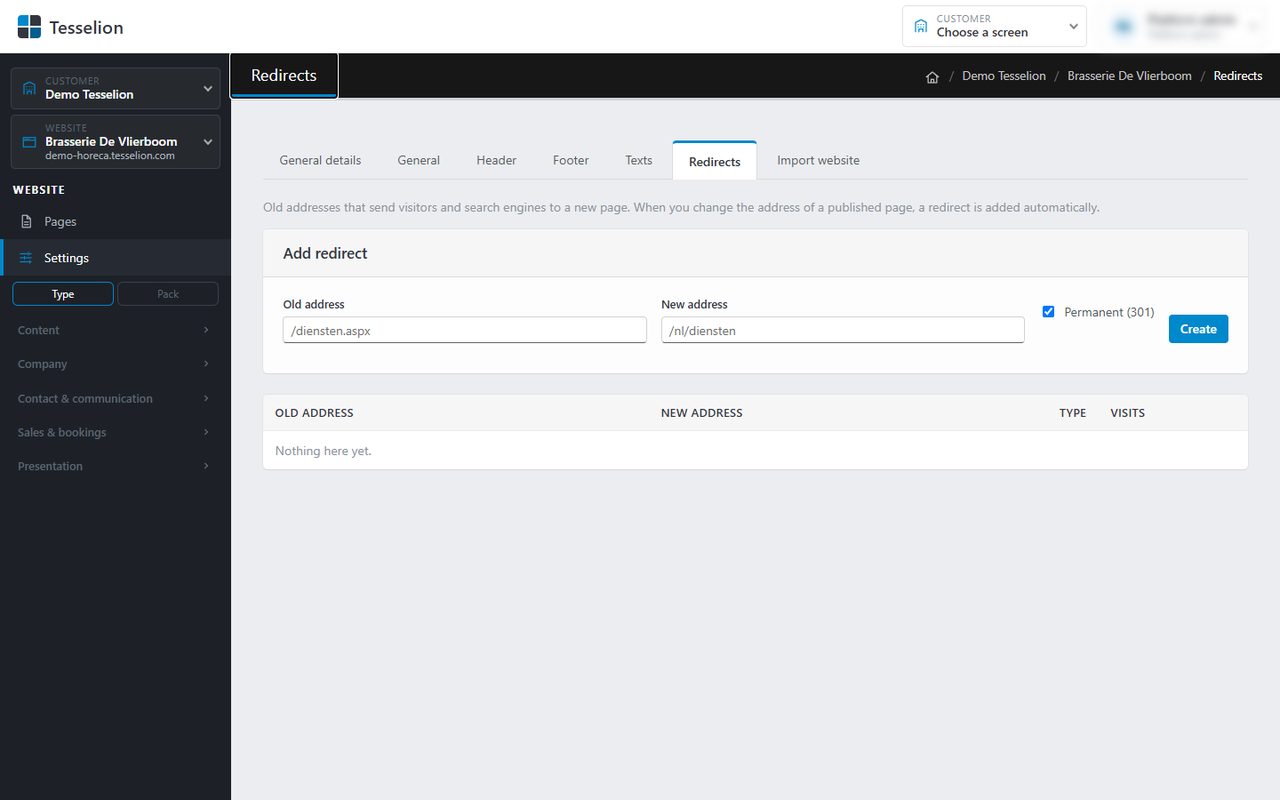
Adding a redirect
- Choose your website on the left and go to Settings → Redirects.
- In the Add redirect card, enter the Old address, e.g.
/services.aspx. - Enter the New address: a path on your site starting with
/(e.g./en/services) or a fullhttps://address. - Leave Permanent (301) ticked if the old address is gone for good. Untick it for a temporary redirect (302).
- Click Create.
The redirect works straight away.
The overview
The table shows each redirect's old and new address, its type (301 or 302) and the number of Visits: how often it has been used. Click ✕ to delete a redirect.
Redirects labelled automatic were added by Tesselion itself, when the address of a published page changed.
Tip: Check the Visits column after a few months. A redirect that is never used can safely stay; one that is used a lot points to an old link you may be able to get updated.
What is not possible
- A redirect from the home page or from the home of a language (e.g.
/en). - Two redirects for the same old address.
- A new address that is the same as the old one.
Note: Only use a permanent redirect (301) if the old address is really never coming back: browsers and search engines remember it.
See also
Tip: if the old site put the language in the address, e.g. /diensten.aspx?culture=fr-FR or ?lang=fr, the redirect goes to the same page in that language, if it exists. One redirect per old address is therefore enough for all languages.
Last updated on 20 November 2026