Importing and site packages
Import an existing website
Take over an existing website: Tesselion fetches its pages, texts, images, menu and style.
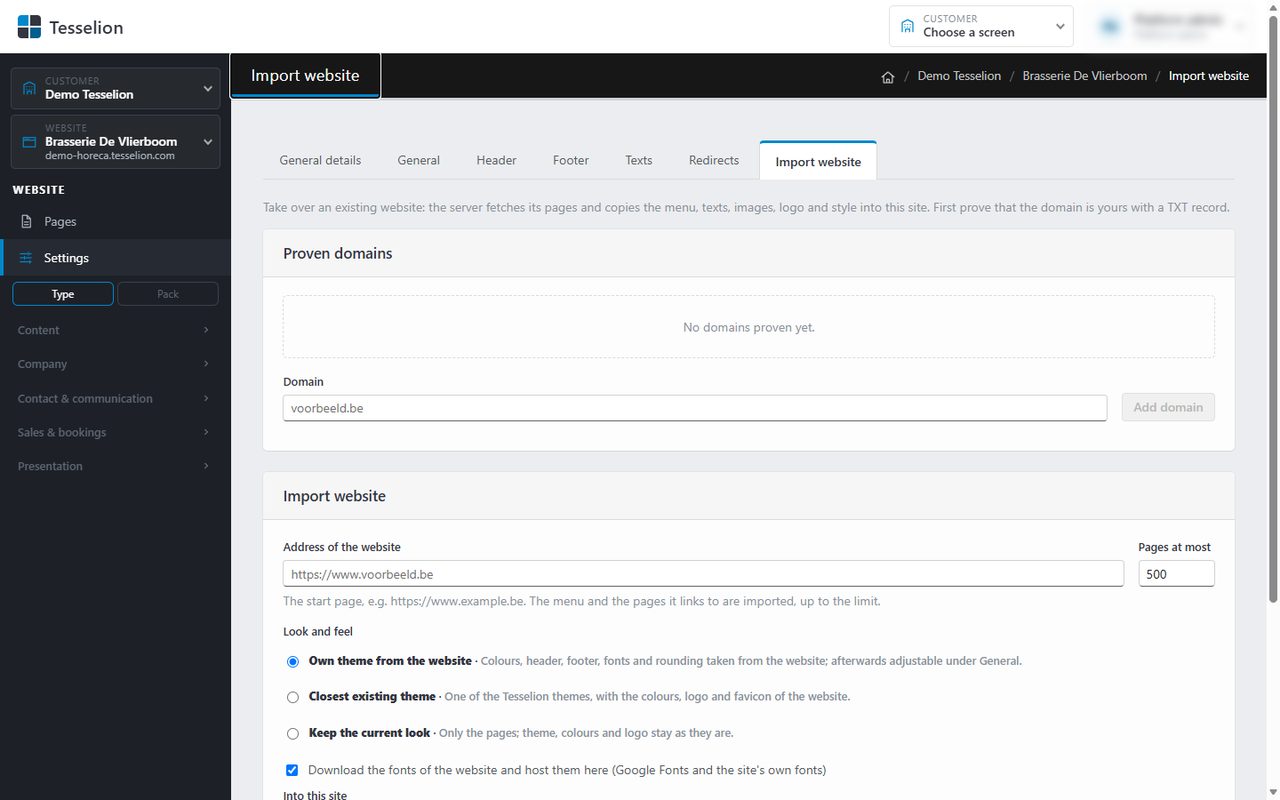
If you already have a website, you don't need to start from scratch. The server fetches the pages of your old site and copies the menu, texts, images, logo and style into your Tesselion site. You then fine-tune the result in the admin.
Note: Whether you can import a website, and how many pages at a time, depends on your plan. If the screen says importing is not part of your plan, choose a larger plan under Subscription (see Order or change your subscription).
Step 1: prove the domain is yours
- Choose your website on the left and click Settings → Import website.
- Under Proven domains, enter the domain of the old website, e.g.
example.com, and click Add domain. - Put the record shown in the TXT record column in that domain's DNS (at your registrar).
- Click Check now. If it is correct, the status becomes Proven. A proven domain also covers its subdomains (www).
Step 2: import
- Under Address of the website, enter the start page, e.g.
https://www.example.com. The menu and the pages it links to are imported, up to your plan's limit. - Under Pages at most, choose how many pages you want.
- Choose the Look and feel: Closest existing theme (a Tesselion theme with your site's colours, logo and favicon), Own theme from the website (if your plan allows it) or Keep the current look.
- Optionally leave the option ticked to download the website's fonts and host them here.
- Under Into this site, choose New (only in a site that has nothing but a home page), Update (only adds what is not there yet) or Replace.
- Click Import website. This can take a minute.
You then see how many pages, redirects and files were imported, the style that was found, and any warnings.
Note: Replace first removes the pages, redirects and module items. Anything you changed in the admin is lost; you have to confirm this separately.
After the import
Check the pages under Pages, the header and footer, and the theme under General. Then point the domain to Tesselion under Domains.
What else is taken over
If your plan allows the module, competitions, the calendar, the committee, logos, documents, the contact form and social media become items of those modules, with blocks on the pages. Otherwise they stay ordinary page content. The platform administrator does not need to prove a domain.
See also
Last updated on 20 November 2026