Modules
What are modules?
What a module is, which modules you have, how to switch them on per website and how to show shared items on one or more sites.
A module adds a feature to your websites, such as posts (news or a blog), a photo gallery or a contact form. Each module has its own screen in the admin, where you manage its content, and usually one or more blocks that you place on a page to show that content on the site.
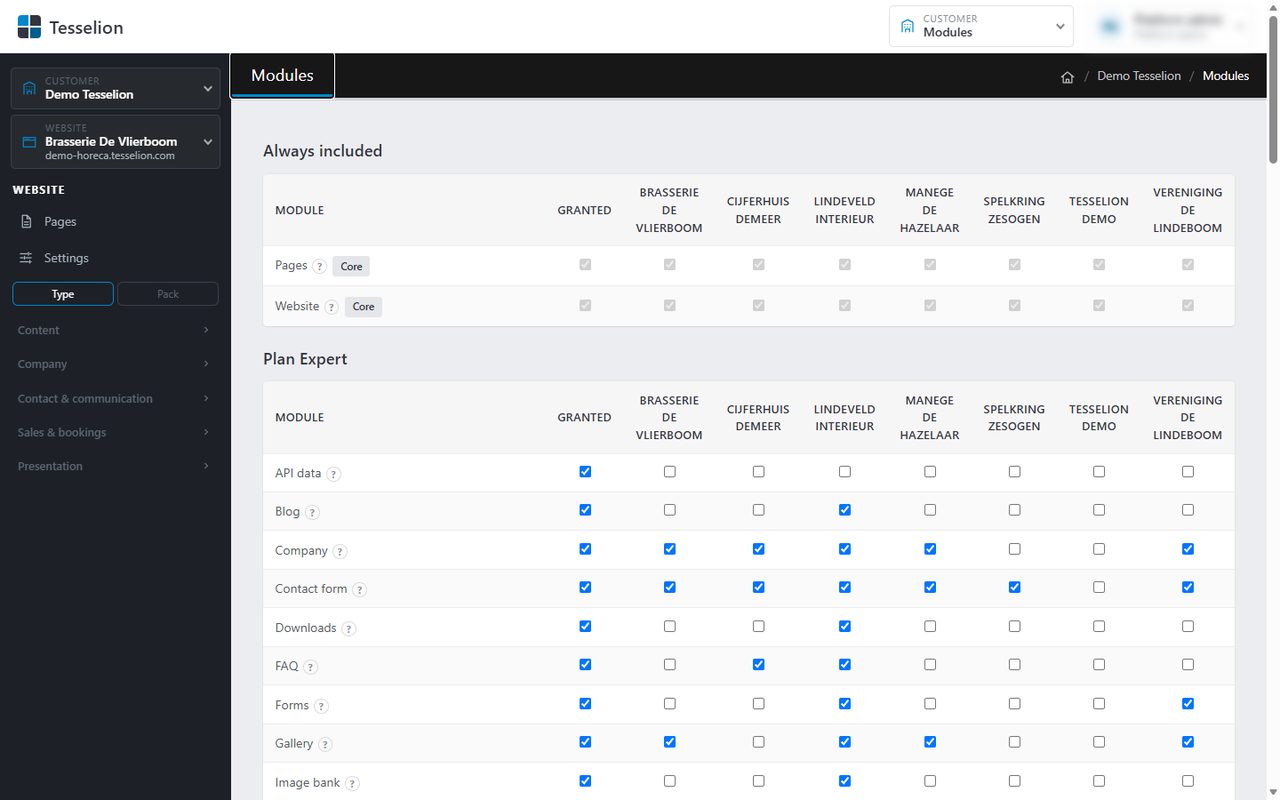
Which modules do you have?
The core module Website (breadcrumbs, sitemap, search and announcements) belongs to every website and is always on. Which other modules you can use depends on your plan and on the packs you added. The platform administrator can also grant a module separately when it is not part of your plan or packs.
Switching a module on or off per website
As the owner, you decide on which of your websites a module is switched on.
- At the top right, click Customer admin and then Modules.
- The modules are grouped: Always included, your plan, each pack and possibly Granted separately. Under Not available you see, greyed out, the modules you don't have (yet); hover over one to see which plan or pack includes it.
- Tick (or untick) the website's column for each module. The question mark after the name tells you what the module does.
- Click Save at the bottom. Only then are the changes applied.
A module that is switched on appears straight away in the menu on the left under the selected website, after Pages and Settings. If you have many, they are shown in collapsible groups (such as Content, Company or Contact & communication) with a Find a module… search box.
Showing a module on a page
The module's screen is where you manage the content; it only appears on the site once you place the module's block on a page. Open the page, choose + Add block in a column and pick the block, for example Photo gallery or Posts overview. The list only offers blocks of modules that are switched on for this website.
Shared items: on which sites?
For many modules (posts, gallery, services, ...) the items belong to your organisation, not to a single website. That is why every item has:
- Visible: untick it to hide the item everywhere.
- All sites: the item appears on all your websites where the module is on. Untick it to choose the websites yourself.
In the list of items, the Visible on column shows where each item appears.
Note: If the module is not switched on for the selected website, a message at the top says so: its items will only be shown there once it is.
Roles
Only an owner sees the Modules screen. An Author only sees their own modules (Posts) in the menu, without pages or settings. Someone whose access is limited to certain sites cannot change shared items.
Tip: Switching a module on doesn't put anything on your site yet. You can prepare the content first and place the block on a page afterwards.
See also
Last updated on 20 November 2026