Skip to content
Tesselion Handleiding
  • Home
  • Handbook
  • Contact
To tesselion.com Search
EN Language: English
  • Nederlands NL
  • Français FR
  • English EN
Contents
  1. Getting started
    1. Welcome to Tesselion
    2. Signing in to the admin
    3. Finding your way around the admin
    4. Creating your first website
    5. Putting your website online
  2. Pages
    1. Creating and organising pages
    2. The menu
    3. Sections and columns
    4. Blocks
    5. Images and files
    6. Drafts, preview and publishing
    7. Languages and translation
    8. Address and search engines (SEO)
    9. Redirects
    10. Fixed texts of the site
  3. Design
    1. Choosing a theme
    2. Colours and fonts
    3. Logo and favicon
    4. The header
    5. The footer
    6. Building your own header and footer
    7. The Own theme
  4. Domains
    1. Connect your own domain
    2. DNS settings
    3. Secure connection (https)
  5. Modules
    1. What are modules?
    2. Website (always on)
      1. Website (core module)
    3. In the plans
      1. Forms
      2. Gallery
      3. Company
      4. Social media
      5. FAQ
      6. Privacy
      7. Posts
      8. Services
      9. Projects
      10. Reviews
      11. Downloads
      12. Jobs
      13. Prices
      14. Links
      15. Key figures
      16. Mail
      17. Knowledge base
      18. API data
      19. Image bank
    4. Site management
      1. Site management
      2. Statistics
      3. SEO
      4. Accessibility
      5. Availability
      6. Maintenance
      7. Content planning
      8. Feedback
    5. Riding school / Stable
      1. Horses
      2. Horses: for sale
      3. Lessons
      4. Appointments
      5. Accounts
      6. Members
      7. Stabling
      8. Competitions
      9. Competitions: entries and payment
      10. Competitions: start list and score sheets
      11. Competitions: results, prizes and rankings
      12. Competitions: secretariat and staffing
      13. Competitions: sponsors
      14. Competitions: page layout
      15. Courses
    6. Accountant
      1. Tax calendar
      2. Calculators
    7. Association
      1. Events
      2. Volunteers
      3. Non-profit association
      4. Federation
      5. Sponsors
    8. Retail / Hospitality
      1. Gift vouchers
      2. Menu
    9. Community
      1. Library
      2. Matchmaking
      3. Game info
      4. Collection
  6. Importing and site packages
    1. Import an existing website
    2. Site packages
  7. Users and security
    1. Inviting users
    2. Roles and permissions
    3. Your account and profile
    4. Two-step verification
    5. Reviewing your sign-ins
  8. Subscription
    1. Plans and packs
    2. Order or change your subscription
    3. Customer and billing details
    4. Trial and usage
  9. Privacy and GDPR
    1. Cookies
    2. The privacy statement
    3. Data and retention periods
  10. Questions and troubleshooting
    1. Frequently asked questions
    2. Troubleshooting
  11. For platform administrators
    1. Platform administration
    2. Showing the plans on a website
  1. Getting started
    1. Welcome to Tesselion
    2. Signing in to the admin
    3. Finding your way around the admin
    4. Creating your first website
    5. Putting your website online
  2. Pages
    1. Creating and organising pages
    2. The menu
    3. Sections and columns
    4. Blocks
    5. Images and files
    6. Drafts, preview and publishing
    7. Languages and translation
    8. Address and search engines (SEO)
    9. Redirects
    10. Fixed texts of the site
  3. Design
    1. Choosing a theme
    2. Colours and fonts
    3. Logo and favicon
    4. The header
    5. The footer
    6. Building your own header and footer
    7. The Own theme
  4. Domains
    1. Connect your own domain
    2. DNS settings
    3. Secure connection (https)
  5. Modules
    1. What are modules?
    2. Website (always on)
      1. Website (core module)
    3. In the plans
      1. Forms
      2. Gallery
      3. Company
      4. Social media
      5. FAQ
      6. Privacy
      7. Posts
      8. Services
      9. Projects
      10. Reviews
      11. Downloads
      12. Jobs
      13. Prices
      14. Links
      15. Key figures
      16. Mail
      17. Knowledge base
      18. API data
      19. Image bank
    4. Site management
      1. Site management
      2. Statistics
      3. SEO
      4. Accessibility
      5. Availability
      6. Maintenance
      7. Content planning
      8. Feedback
    5. Riding school / Stable
      1. Horses
      2. Horses: for sale
      3. Lessons
      4. Appointments
      5. Accounts
      6. Members
      7. Stabling
      8. Competitions
      9. Competitions: entries and payment
      10. Competitions: start list and score sheets
      11. Competitions: results, prizes and rankings
      12. Competitions: secretariat and staffing
      13. Competitions: sponsors
      14. Competitions: page layout
      15. Courses
    6. Accountant
      1. Tax calendar
      2. Calculators
    7. Association
      1. Events
      2. Volunteers
      3. Non-profit association
      4. Federation
      5. Sponsors
    8. Retail / Hospitality
      1. Gift vouchers
      2. Menu
    9. Community
      1. Library
      2. Matchmaking
      3. Game info
      4. Collection
  6. Importing and site packages
    1. Import an existing website
    2. Site packages
  7. Users and security
    1. Inviting users
    2. Roles and permissions
    3. Your account and profile
    4. Two-step verification
    5. Reviewing your sign-ins
  8. Subscription
    1. Plans and packs
    2. Order or change your subscription
    3. Customer and billing details
    4. Trial and usage
  9. Privacy and GDPR
    1. Cookies
    2. The privacy statement
    3. Data and retention periods
  10. Questions and troubleshooting
    1. Frequently asked questions
    2. Troubleshooting
  11. For platform administrators
    1. Platform administration
    2. Showing the plans on a website

← Handbook

Design

The footer

Set up everything at the bottom of every page: texts, links and the © line, with the contact details from the general details and variables for your texts.

On this page

  • Contact details
  • Variables
  • Texts per language
  • Links
  • Position and credit line
  • See also

The footer sits at the bottom of every page. It holds your contact details, a short text, opening hours, useful links and the © line. Go to Settings → Footer; the Preview at the top follows every change.
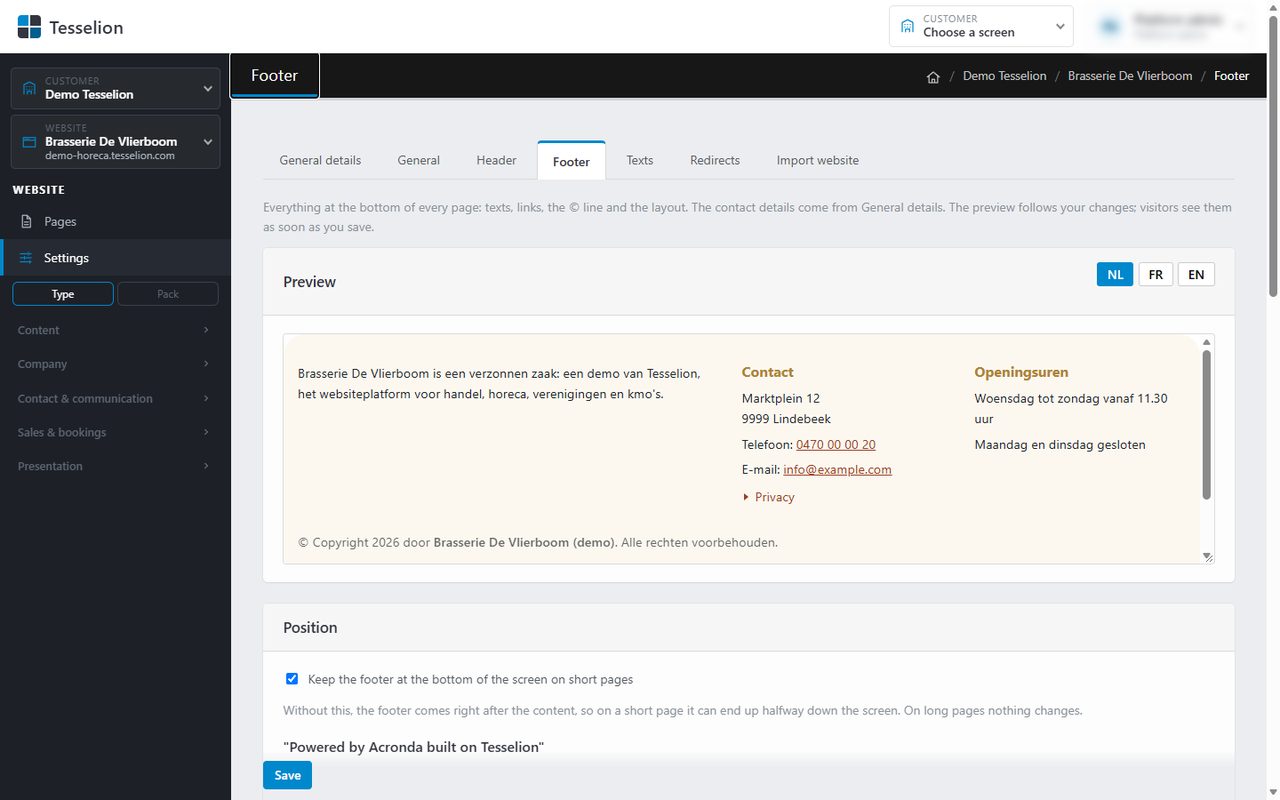
The Footer tab of the site settings

Contact details

The details of your organisation are kept in one place: Settings → tab General details. The footer, the header and your texts take them from there. The Footer screen links to that card.

  1. Fill in what you want to show: Name of the organisation, VAT number, Email, Phone, Fax, Street and number, Postal code, City, Country and IBAN.
  2. Pick a language next to Editing in and fill in the Opening hours, one line per day or period.
  3. Click Save.

Leave a field empty to hide it. Without a name of the organisation, the name of the site is used. The IBAN is checked; an invalid number is not saved. These details are also given to search engines, and phone and email can appear in the header's top bar.

Variables

Use the general details in your texts too: put a variable in a heading, a text block, a button, the footer text or © line, or the label of a link. The site fills them in, in the language of the page. When a detail changes, every page follows.

  • {{contact:name}}: the name of the organisation (empty: the name of the site)
  • {{contact:vatNumber}}: the VAT or enterprise number
  • {{contact:email}}: the email address
  • {{contact:phone}}: the phone number
  • {{contact:fax}}: the fax number
  • {{contact:address}}: the address on one line, e.g. “Church Street 1, 2000 Antwerp” (followed by the country, e.g. “…, 2000 Antwerp, Belgium”)
  • {{contact:street}}: street and number
  • {{contact:postalCode}}: the postal code
  • {{contact:city}}: the city
  • {{contact:country}}: the country, in the language of the page
  • {{contact:iban}}: the account number, in groups of four
  • {{contact:openingHours}}: the opening hours in the language of the page
  • {{site:name}}: the name of the site
  • {{year}}: the current year

The variables also work in the subject and text of the emails of the site (e.g. a confirmation, a newsletter or a message from the secretariat) and in knowledge base articles. Text formatted as code stays as it is: that way you can show a variable instead of its value.

You do not have to type a variable. The toolbar of a text editor (e.g. a text block, a tab, a knowledge base article or the own text of the privacy statement) has the button {}. Next to an ordinary text field where variables work (e.g. the title of a Heading block, the text and the address of a button, the footer text and © line, the subject and text of a newsletter) you find the small button {} (Insert variable). A click opens the list, per group: Site, Contact (general details) and the modules that are on for your site, e.g. Competitions. Click a variable and it is placed at the cursor. The list only shows what works in that place: in an address only variables that give an address, in a text only text.

Tip: Below General details you find the full list, with a button to copy a variable. In the preview a mistyped variable stays visible; on the site it is left out.

Note: If a text contains a variable that does not exist (e.g. a typo), you see a warning below the text editor and after saving a page. Saving still works; the variable is just not filled in.

The pages a module makes itself have more variables: the details of the competition ({{competition:title}} ...) in the page layout of Competitions and those of the period ({{period:name}} ...) in the page layout of Courses. On an ordinary page they stay empty.

Texts per language

  1. Pick a language next to Editing in.
  2. Fill in the Footer text, e.g. a short introduction.
  3. Optionally fill in the Name in the © line. Left empty, the name of the organisation is used, or else the site name.
  4. Under Headings you can replace the titles of the footer columns. Left empty, they keep the standard text (shown in grey).

Links

  1. In the Links card, click Add link.
  2. Under Goes to, choose a page of your site or an address, and enter the Label in each language.
  3. Tick In Contact to show the link in the Contact column instead of with the other links.

Links are shown at the bottom, next to ©. With Show the links as a column “Useful links” at the top of the footer they get a column of their own.

Note: A link without a label in a language is not shown in that language.

Position and credit line

  • Keep the footer at the bottom of the screen on short pages: the footer no longer ends up halfway down the screen on a short page.
  • The line “Powered by Acronda built on Tesselion” is always shown at the bottom. You choose its Alignment and whether it sits On a line of its own.

Click Save at the bottom. Visitors see the change straight away.

Tip: Put a link to your privacy statement and contact page in the footer: that is often exactly where visitors look for them.

See also

  • Building your own header and footer
  • The header
  • Fixed texts of the site
  • The privacy statement

Last updated on 20 November 2026

Previous The headerNext Building your own header and footer

The Tesselion handbook: building and managing websites, step by step.

Contact

Email: support@tesselion.com

Useful links

  • Handbook
  • Demo
  • tesselion.com
  • Contact
© Copyright 2026 by Tesselion. All rights reserved.Powered by Acronda built on Tesselion