Pages
Sections and columns
Build a page from sections and columns, and set the width, spacing, background and height of each section.
A page is made of sections: horizontal bands, one below the other. Each section has one or more columns, and in each column you place blocks (text, image, buttons…). You work in the Layout tab of a page.
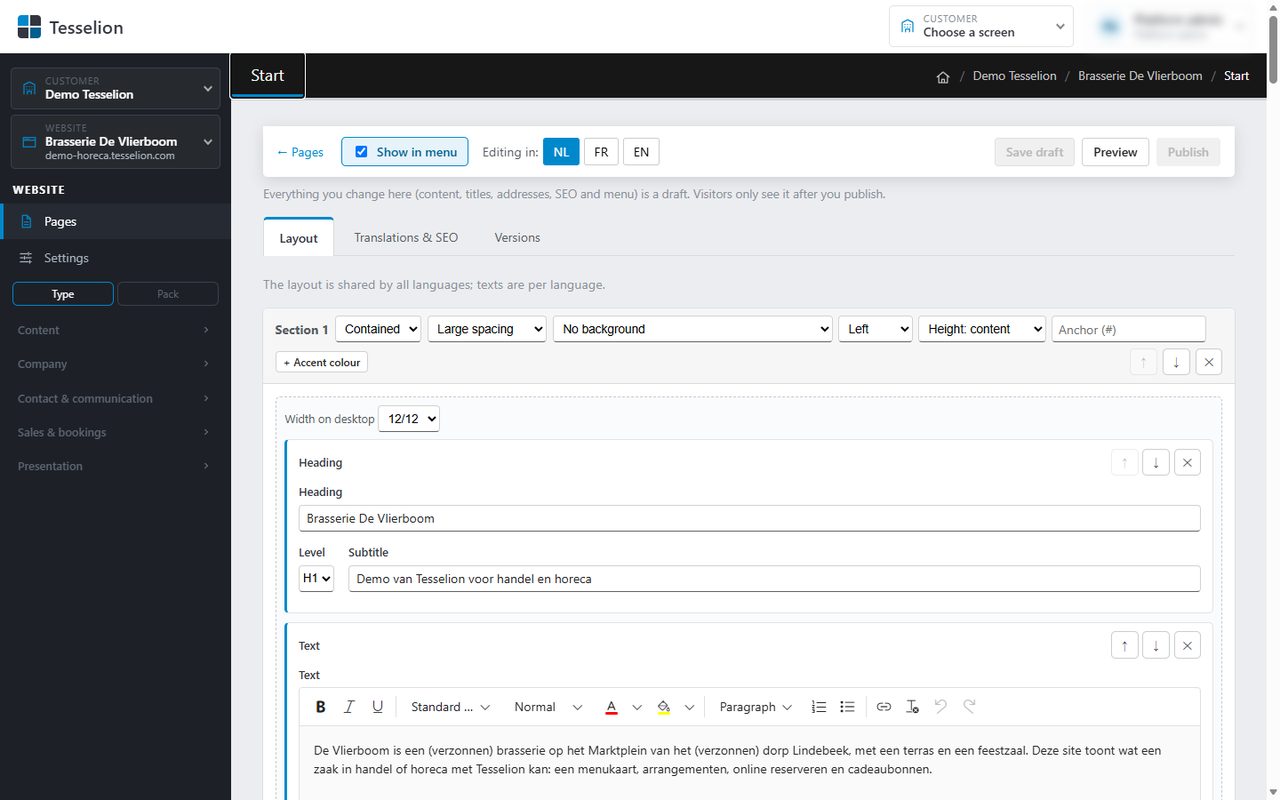
Adding a section
- Open the page from Pages; the Layout tab is open.
- At the bottom, next to + Add section, pick a column layout: 1, ½ ½, ⅓ ⅓ ⅓, ⅔ ⅓, ⅓ ⅔ or ¼ ¼ ¼ ¼.
- Add blocks to each column with + Add block.
- Click Save draft, or go straight to Publish.
For each column, Width on desktop sets how many twelfths of the width it takes (1/12 to 12/12). On a phone, columns are stacked.
Section settings
The header row of every section has a few drop-downs:
- Width: Contained or Full width (edge to edge).
- Spacing: from No spacing to Large spacing above and below the section.
- Background: No background, Primary colour, Accent colour (the site's second colour), Light, Dark or Photo (white text, headings in the main colour).
- Alignment: Left or Centred.
- Minimum height: from Height: content to Height: full screen (or Height: rest of the screen, which runs to the bottom of the screen from where the section starts, e.g. a photo below the header), handy for a large opening section.
- Anchor (#): a short name so that a button or link can jump straight to this section (e.g.
#prices). - + Accent colour: a colour of your own that replaces the site's main colour in this section.
Note: With Photo you cannot pick a background image in the layout itself: the section gets a dark background with white text. An actual background photo only comes along with an imported website.
Moving or removing sections
Use ↑ and ↓ on the right of the header row to move a section; ✕ (Remove section) removes it, together with its blocks.
Tip: The layout is shared by all languages; only the texts differ per language. So you only need to build the sections once.
See also
Last updated on 20 November 2026