Skip to content
Tesselion Handleiding
  • Home
  • Handbook
  • Contact
To tesselion.com Search
EN Language: English
  • Nederlands NL
  • Français FR
  • English EN
Contents
  1. Getting started
    1. Welcome to Tesselion
    2. Signing in to the admin
    3. Finding your way around the admin
    4. Creating your first website
    5. Putting your website online
  2. Pages
    1. Creating and organising pages
    2. The menu
    3. Sections and columns
    4. Blocks
    5. Images and files
    6. Drafts, preview and publishing
    7. Languages and translation
    8. Address and search engines (SEO)
    9. Redirects
    10. Fixed texts of the site
  3. Design
    1. Choosing a theme
    2. Colours and fonts
    3. Logo and favicon
    4. The header
    5. The footer
    6. Building your own header and footer
    7. The Own theme
  4. Domains
    1. Connect your own domain
    2. DNS settings
    3. Secure connection (https)
  5. Modules
    1. What are modules?
    2. Website (always on)
      1. Website (core module)
    3. In the plans
      1. Forms
      2. Gallery
      3. Company
      4. Social media
      5. FAQ
      6. Privacy
      7. Posts
      8. Services
      9. Projects
      10. Reviews
      11. Downloads
      12. Jobs
      13. Prices
      14. Links
      15. Key figures
      16. Mail
      17. Knowledge base
      18. API data
      19. Image bank
    4. Site management
      1. Site management
      2. Statistics
      3. SEO
      4. Accessibility
      5. Availability
      6. Maintenance
      7. Content planning
      8. Feedback
    5. Riding school / Stable
      1. Horses
      2. Horses: for sale
      3. Lessons
      4. Appointments
      5. Accounts
      6. Members
      7. Stabling
      8. Competitions
      9. Competitions: entries and payment
      10. Competitions: start list and score sheets
      11. Competitions: results, prizes and rankings
      12. Competitions: secretariat and staffing
      13. Competitions: sponsors
      14. Competitions: page layout
      15. Courses
    6. Accountant
      1. Tax calendar
      2. Calculators
    7. Association
      1. Events
      2. Volunteers
      3. Non-profit association
      4. Federation
      5. Sponsors
    8. Retail / Hospitality
      1. Gift vouchers
      2. Menu
    9. Community
      1. Library
      2. Matchmaking
      3. Game info
      4. Collection
  6. Importing and site packages
    1. Import an existing website
    2. Site packages
  7. Users and security
    1. Inviting users
    2. Roles and permissions
    3. Your account and profile
    4. Two-step verification
    5. Reviewing your sign-ins
  8. Subscription
    1. Plans and packs
    2. Order or change your subscription
    3. Customer and billing details
    4. Trial and usage
  9. Privacy and GDPR
    1. Cookies
    2. The privacy statement
    3. Data and retention periods
  10. Questions and troubleshooting
    1. Frequently asked questions
    2. Troubleshooting
  11. For platform administrators
    1. Platform administration
    2. Showing the plans on a website
  1. Getting started
    1. Welcome to Tesselion
    2. Signing in to the admin
    3. Finding your way around the admin
    4. Creating your first website
    5. Putting your website online
  2. Pages
    1. Creating and organising pages
    2. The menu
    3. Sections and columns
    4. Blocks
    5. Images and files
    6. Drafts, preview and publishing
    7. Languages and translation
    8. Address and search engines (SEO)
    9. Redirects
    10. Fixed texts of the site
  3. Design
    1. Choosing a theme
    2. Colours and fonts
    3. Logo and favicon
    4. The header
    5. The footer
    6. Building your own header and footer
    7. The Own theme
  4. Domains
    1. Connect your own domain
    2. DNS settings
    3. Secure connection (https)
  5. Modules
    1. What are modules?
    2. Website (always on)
      1. Website (core module)
    3. In the plans
      1. Forms
      2. Gallery
      3. Company
      4. Social media
      5. FAQ
      6. Privacy
      7. Posts
      8. Services
      9. Projects
      10. Reviews
      11. Downloads
      12. Jobs
      13. Prices
      14. Links
      15. Key figures
      16. Mail
      17. Knowledge base
      18. API data
      19. Image bank
    4. Site management
      1. Site management
      2. Statistics
      3. SEO
      4. Accessibility
      5. Availability
      6. Maintenance
      7. Content planning
      8. Feedback
    5. Riding school / Stable
      1. Horses
      2. Horses: for sale
      3. Lessons
      4. Appointments
      5. Accounts
      6. Members
      7. Stabling
      8. Competitions
      9. Competitions: entries and payment
      10. Competitions: start list and score sheets
      11. Competitions: results, prizes and rankings
      12. Competitions: secretariat and staffing
      13. Competitions: sponsors
      14. Competitions: page layout
      15. Courses
    6. Accountant
      1. Tax calendar
      2. Calculators
    7. Association
      1. Events
      2. Volunteers
      3. Non-profit association
      4. Federation
      5. Sponsors
    8. Retail / Hospitality
      1. Gift vouchers
      2. Menu
    9. Community
      1. Library
      2. Matchmaking
      3. Game info
      4. Collection
  6. Importing and site packages
    1. Import an existing website
    2. Site packages
  7. Users and security
    1. Inviting users
    2. Roles and permissions
    3. Your account and profile
    4. Two-step verification
    5. Reviewing your sign-ins
  8. Subscription
    1. Plans and packs
    2. Order or change your subscription
    3. Customer and billing details
    4. Trial and usage
  9. Privacy and GDPR
    1. Cookies
    2. The privacy statement
    3. Data and retention periods
  10. Questions and troubleshooting
    1. Frequently asked questions
    2. Troubleshooting
  11. For platform administrators
    1. Platform administration
    2. Showing the plans on a website

← Handbook

Getting started

Finding your way around the admin

How the admin is laid out: the pickers at the top, the Website and Customer groups in the sidebar, the user menu and the dashboard.

On this page

  • The pickers at the top of the sidebar
  • Manual and website in the Customer admin menu
  • The danger zone
  • The Customer admin menu
  • The Website group
  • The dashboard
  • Your user menu
  • See also

Once signed in, you see a sidebar on the left and the screen you are working in on the right. Everything in the sidebar depends on the organisation and website chosen at the top. What you see also depends on your role.
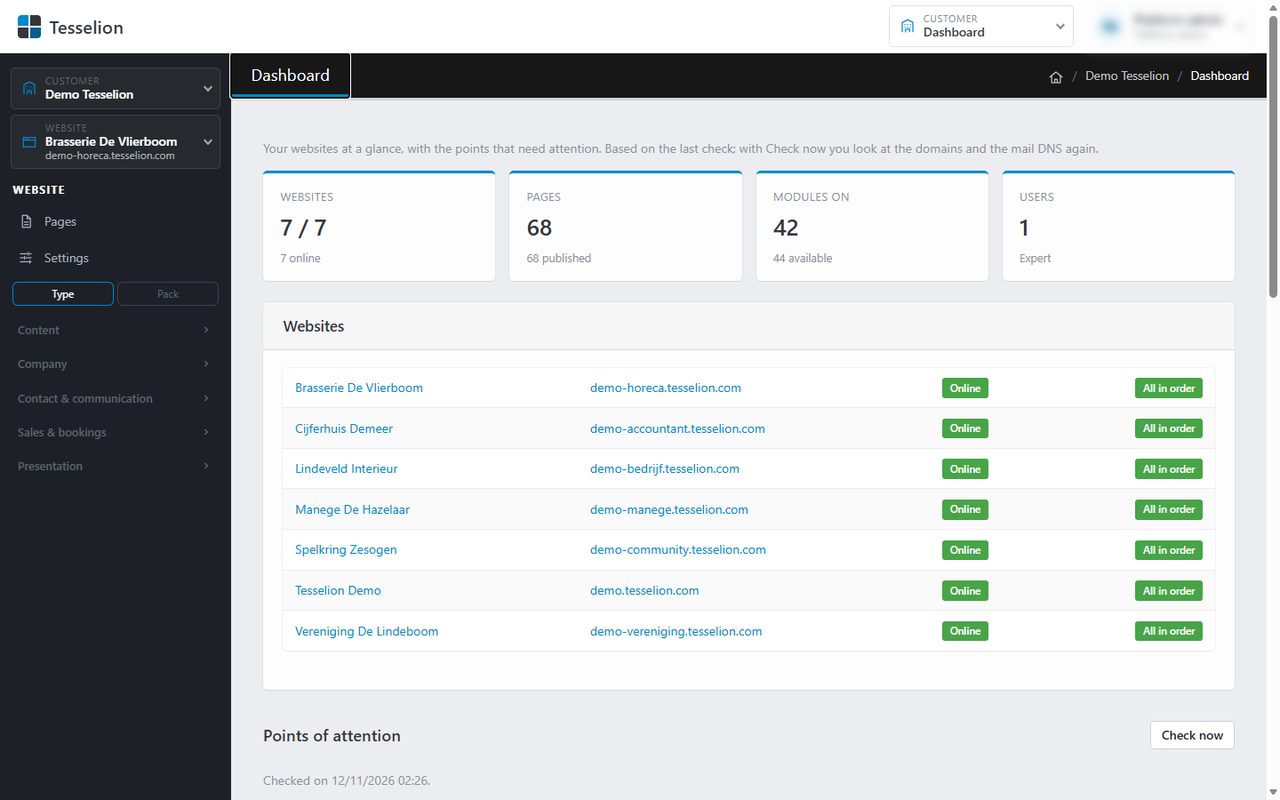
The admin dashboard, with the menu on the left

The pickers at the top of the sidebar

  • Customer: your organisation. If you work for just one, only its name is shown. If you have access to several, click the name to switch.
  • Website: the website you are working on, with its address underneath. If you have more than one, click to switch. The arrow next to a website opens it in a new tab. At the bottom are Manage websites and, if you may still create one, New website.

Manual and website in the Customer admin menu

At the bottom of the Customer admin menu (top right), when you have chosen a website, there are two more links, each after a line: Manual opens this manual in a new tab, and View website opens the chosen website (if it has an address).

The danger zone

Actions you cannot simply undo, such as deleting a website or customer, removing a user's access or turning off two-step verification, sit apart in a red Danger zone box, with a red button and a short explanation. Read it before you click. The small delete buttons (✕) in lists also have a red border.

The Customer admin menu

Under Customer admin at the top right (with the gear) you find what applies to your whole organisation: Dashboard and Websites. As an owner you also see Domains, Modules, Customer details, Subscription and Users.

The Website group

This holds everything for the chosen website:

  • Pages: the page tree and the page editor.
  • Settings: languages, theme, header, footer and other settings, spread over tabs.
  • Below that, after a line, Site management: the website tools (such as statistics, SEO and maintenance) as tabs of one screen, when one of its parts is on.
  • Then the modules turned on for this website, in alphabetical order. A number next to a module flags something that needs attention, such as new submissions.

When many modules are on, they appear in collapsible groups such as Content, Company, Contact & communication, Sales & bookings, Clients & members, Finance and Horses. Click a group name to open or close it. When you open the admin, the groups are closed, except the group you are working in. If you have packs, choose Type or Pack above the groups to see the modules by type or by pack. From ten modules onwards, a Find a module… search box appears above them.

The dashboard

Click a block with a figure to go to the matching screen.

The Dashboard shows your websites at a glance: the number of websites (and how many are online), pages and modules turned on, plus, for owners, the number of users and the plan. Below that, each website is marked Online or Offline, followed by the Points of attention from the last check. Check now re-checks everything, including the domains.

Your user menu

Your name is at the top right. Click it for My profile, Sign-ins, Technical details and Sign out.

Tip: On a narrow screen, such as a phone, the sidebar sits behind the menu button at the top left.

See also

  • Creating your first website
  • What are modules?
  • Your account and profile
  • Roles and permissions

Last updated on 20 November 2026

Previous Signing in to the adminNext Creating your first website

The Tesselion handbook: building and managing websites, step by step.

Contact

Email: support@tesselion.com

Useful links

  • Handbook
  • Demo
  • tesselion.com
  • Contact
© Copyright 2026 by Tesselion. All rights reserved.Powered by Acronda built on Tesselion